
Google Merchant Center Product Image Standards
A practical checklist of Google Merchant Center product image standards so your listings look compliant and trustworthy.
Introduction
Google Merchant Center uses product images to understand what you sell and to display your items in shopping experiences. When your images are blurry, cropped oddly, or include extra text/graphics, listings can look less trustworthy and may not meet platform expectations.
This guide outlines a practical checklist for preparing compliant-looking product images. Always confirm with the latest Google Merchant Center policies, and use xcropimage.io to crop and resize your images consistently.
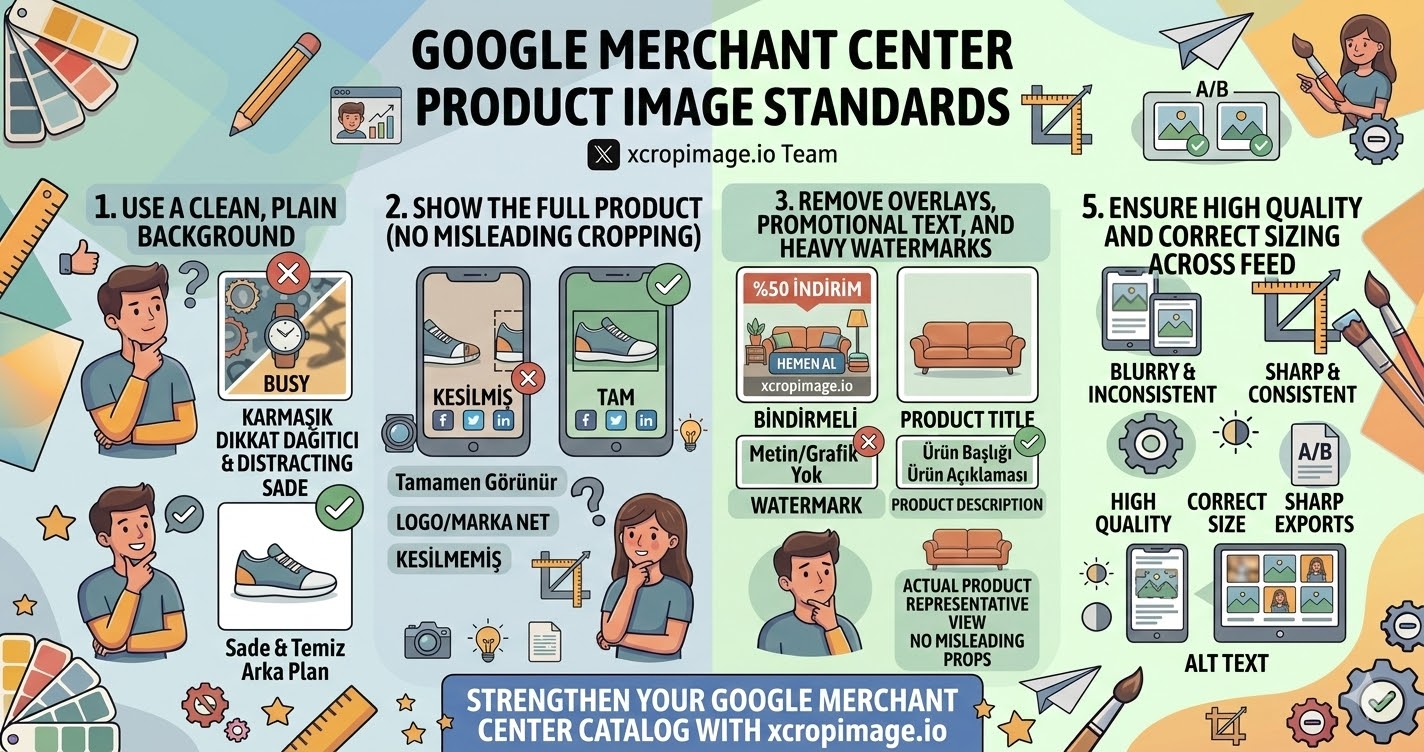
1. Use a clean, plain background
In many cases, Google prefers a simple background so the product stands out. Start with a plain or white/neutral look when possible.
If needed, use the crop tool to remove distracting edges and keep the product clearly framed.
2. Show the full product (no misleading cropping)
Your main image should show the product clearly and completely—viewers should not have to guess what is missing.
When you crop, keep the product fully visible and avoid cutting off important parts (logos, branding, size reference, etc.).
3. Remove overlays, promotional text, and heavy watermarks
Text banners, promotional overlays, or strong watermarks can reduce clarity. Prepare the clean product image and keep marketing text in your product title/description instead.
For consistent results across the catalog, crop the product consistently and then export using the resizer.
4. Match the image to the actual product you sell
Images should represent what the customer will receive. If your photos include props or styling that changes the perceived product, customers may feel misled.
Keep styling secondary and focus on clarity so the product is always the main subject.
5. Ensure high quality and correct sizing across your feed
Blurry images or inconsistent sizing make your listings look low quality.
Use the resizer to standardize output dimensions and keep your catalog looking sharp and consistent across categories.
Conclusion
Compliant product images are simple: clean background, full product visibility, no distracting overlays, accurate representation, and high-quality, consistent exports. Use the crop and resize tools on xcropimage.io to prepare images quickly and keep your Merchant Center catalog looking professional.