
Simple Image Editing Tips for Faster-Loading Websites
Simple, practical image editing tips to make your website load faster. File size, format, dimensions, and optimization explained without technical jargon.
Introduction
Images are typically the largest files on any webpage, and they are the most common reason pages load slowly. A slow website loses visitors, hurts search engine rankings, and reduces conversion rates. The good news is that most image-related speed issues can be fixed with a few simple editing steps—no advanced technical knowledge required. This post covers the most effective image optimization habits for faster-loading websites. You can use the tools on the xcropimage.io homepage to resize and prepare your images for the web.
Why Image Size Affects Page Speed So Much
- File weight: A single unoptimized image can be 5–10 MB; a well-optimized one for the same visual can be under 100 KB. That difference directly translates to load time.
- Mobile networks: Many users browse on mobile connections that are significantly slower than desktop Wi-Fi; large images punish mobile users most.
- SEO impact: Google's Core Web Vitals include page speed metrics; slow image loads directly hurt your search ranking.
Optimizing images is one of the highest-impact, lowest-effort improvements you can make to a website.
Resize to the Display Size Before Uploading
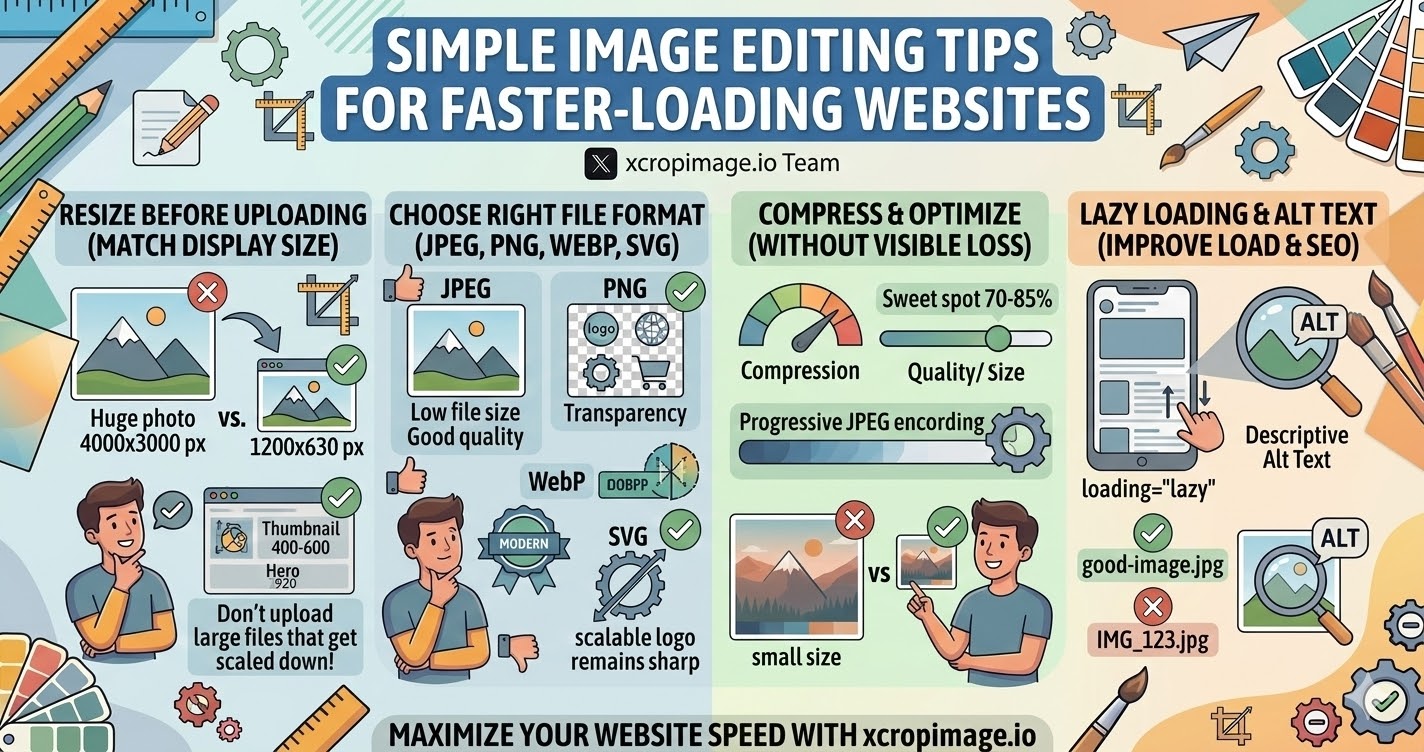
The single biggest mistake: uploading a 4000 × 3000 px photo to a website that displays it at 800 × 600 px. The browser downloads the full large file and then scales it down—wasting bandwidth every time.
- Match dimensions: Before uploading, resize the image to the exact pixel dimensions it will be displayed at (or 2× for retina screens). Use the resizer to do this quickly.
- Standard sizes: Blog post images: typically 1200 × 630 px. Product thumbnails: 400–600 px wide. Full-width hero images: 1920 px wide maximum.
- No larger than needed: If an image is displayed at 600 px wide, uploading a 3000 px wide version wastes bandwidth for every visitor.
Choose the Right File Format
- JPEG: Best for photographs and complex images with many colors. Offers good quality at small file sizes. Use for product photos, blog images, and backgrounds.
- PNG: Best for graphics with transparency (logos, icons, illustrations). Larger file size than JPEG for photos—do not use PNG for photographs unless you need transparency.
- WebP: A modern format that delivers better compression than JPEG and PNG at equal quality. Supported by all major browsers; prefer WebP where possible.
- SVG: Best for logos, icons, and simple illustrations that need to scale perfectly at any size without quality loss.
Choosing the right format can cut file size in half without any visible quality change.
Compress Without Losing Visible Quality
- JPEG quality 70–85%: For web use, JPEG quality settings between 70 and 85 are usually indistinguishable from 100% at normal viewing sizes, with file sizes 4–5× smaller.
- Progressive JPEG: Encodes the image to load as a low-resolution preview first, then fills in detail—this makes pages feel faster even before the image fully loads.
- Lossless PNG compression: PNG files can be compressed without any quality loss using standard tools; always compress PNGs before uploading.
A well-compressed image at the right dimensions is the foundation of a fast-loading page.
Use Correct Dimensions with the Resizer
The resizer on xcropimage.io lets you set exact output dimensions before saving. This workflow takes under a minute per image and prevents the most common cause of oversized images on websites:
- Open the source image in the resizer.
- Set the width to match the display size (e.g. 1200 px for a blog header).
- Export as JPEG or WebP at an appropriate quality.
- Upload the optimized file instead of the original.
This single step can reduce page weight by 80–90% compared to uploading original camera files.
Lazy Loading and Descriptive Alt Text
- Lazy loading: Images below the fold do not need to load immediately. Adding
loading="lazy"to image tags tells the browser to load them only when the user scrolls near them—improving initial page load time significantly. - Alt text: Write a short, descriptive alt text for every image. This improves accessibility for screen reader users and helps search engines understand the image content—both of which support SEO.
- Descriptive file names: Name files clearly (e.g.
red-running-shoes-side-view.jpginstead ofIMG_4823.jpg); this also contributes to SEO.
What to Avoid
- Uploading original camera files: RAW or full-resolution JPEG files from a camera are typically 5–20 MB; always resize and compress before uploading.
- Using PNG for photographs: PNG is lossless but produces much larger files than JPEG for photos; only use it when transparency is required.
- Skipping compression: Even if you resize correctly, an uncompressed JPEG or PNG can still be unnecessarily large.
- Same image for all contexts: A hero image, a thumbnail, and a social share preview all have different ideal dimensions; use the resizer to prepare separate versions.
Conclusion
Faster-loading websites start with correctly sized, properly formatted, and compressed images. Resize to the display dimensions using the resizer, choose the right format (JPEG or WebP for photos), compress before uploading, and use lazy loading for images below the fold. Use the tools on xcropimage.io to make image preparation fast and consistent, and give every visitor a faster, better experience.