
Open Graph and Twitter Card previews: a debugging checklist when the wrong image shows
Fix wrong or stale link previews by validating OG/Twitter tags, absolute URLs, image size, and platform cache refresh.
Introduction
Link previews sometimes show the wrong image, a stale asset, or nothing. Debug Open Graph and Twitter Card tags together with CDN and platform caches.
Earlier in this series: Email newsletter hero images · WebP vs AVIF. For cover sizing, see blog cover image tips.
Checklist
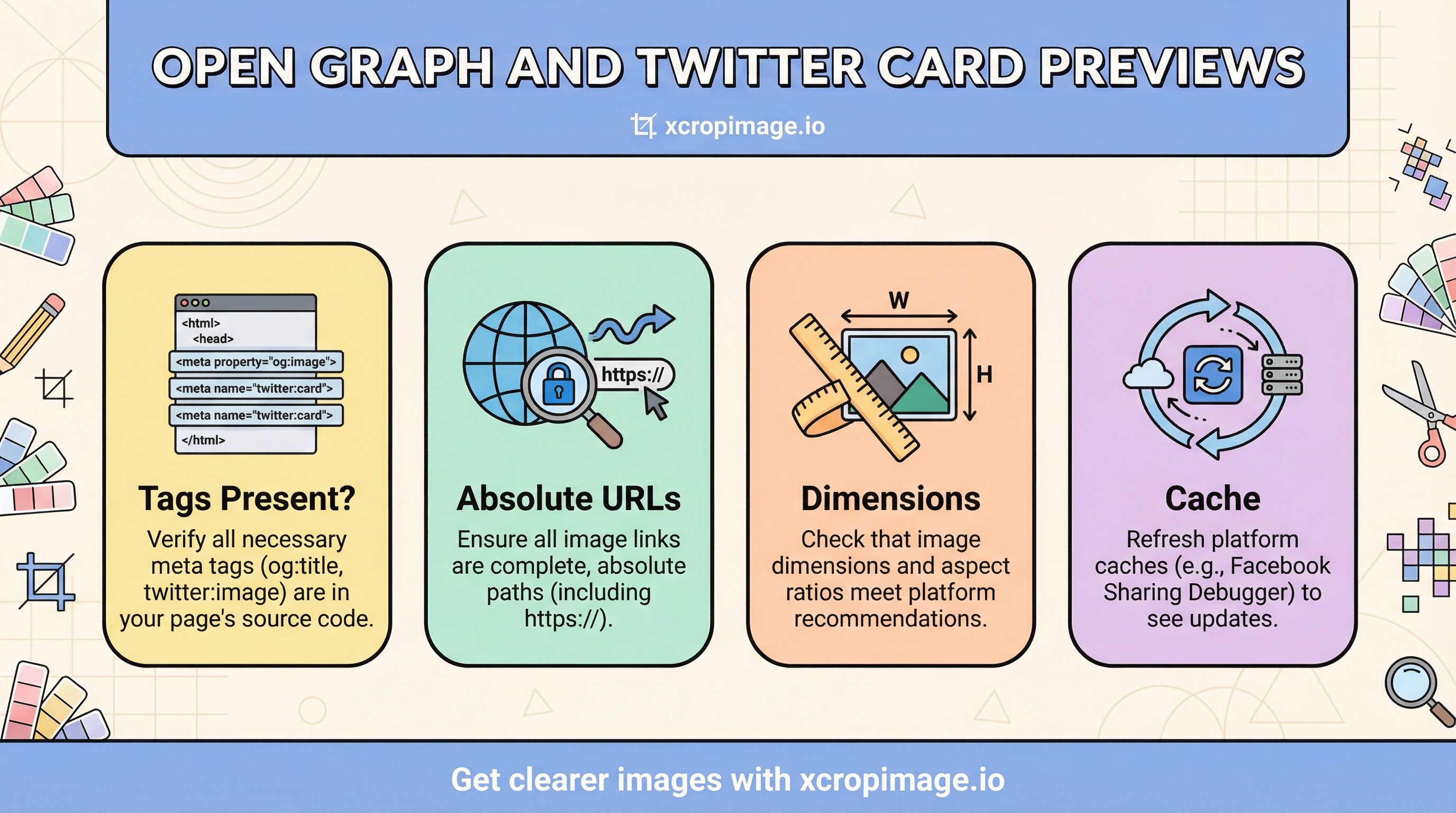
- Tags present?
og:image,og:title,og:url, plustwitter:card/twitter:imageas needed. - Absolute URLs:
og:imageshould be a full HTTPS URL—relative paths often fail. - Dimensions: Follow platform guidance; see Facebook’s image guidelines for sharing and Twitter’s Cards documentation.
- Cache: Social networks cache previews—use official debuggers to rescrape.
Debuggers
- Facebook Sharing Debugger
- LinkedIn Post Inspector
- Twitter/X validation tools (check current docs—tools change)
SEO angle
Previews are not a direct ranking factor, but CTR and brand consistency matter indirectly. Align filenames and on-page alt text SEO with your campaign assets.

CDN and your own cache
If og:image points at a CDN URL, you may still see stale art after deploy—see CDN cache and stale images. Version filenames or purge paths in the same release where you change meta tags.
Common mistakes
- Multiple conflicting
og:imagetags (last wins—know your template order). - Huge uncompressed PNGs as preview images (slow scrape, occasional failures).
- Forgetting to update
og:urlwhen the canonical page moves.
Turkish parallel
Open Graph ve Twitter Card (Türkçe) mirrors this checklist.
Conclusion
Validate tags first, then refresh caches with platform tools. Use resize and crop to lock stable aspect ratios for previews.